

Welcome to the Help Center
Get quick answers to your questions about Scholarship Region
How to promote your business
Promoting your business on Scholarship Region gives you access to a highly engaged audience in the education niche. By running your ads on this platform, you can attract up to 2M+ customers to your business.
On the Scholarship Region platform, you can set your ads to achieve various objectives, including brand awareness, traffic generation, customer acquisition, and more. To set up your business promotions successfully, follow these steps:
Step one: Sign up/Sign in to your account
If you already have a scholar or organization account, log in. If you don’t have an account yet, you can sign up here.
Step two: Navigate to the Promotion section
Once you have logged in to your account, click ‘Promotion’ in the main menu. On the Promotion page, you will see the ‘Create Promotion’ button at the top-right corner of the page. Click ‘Create Promotion’ to start setting up your ad.
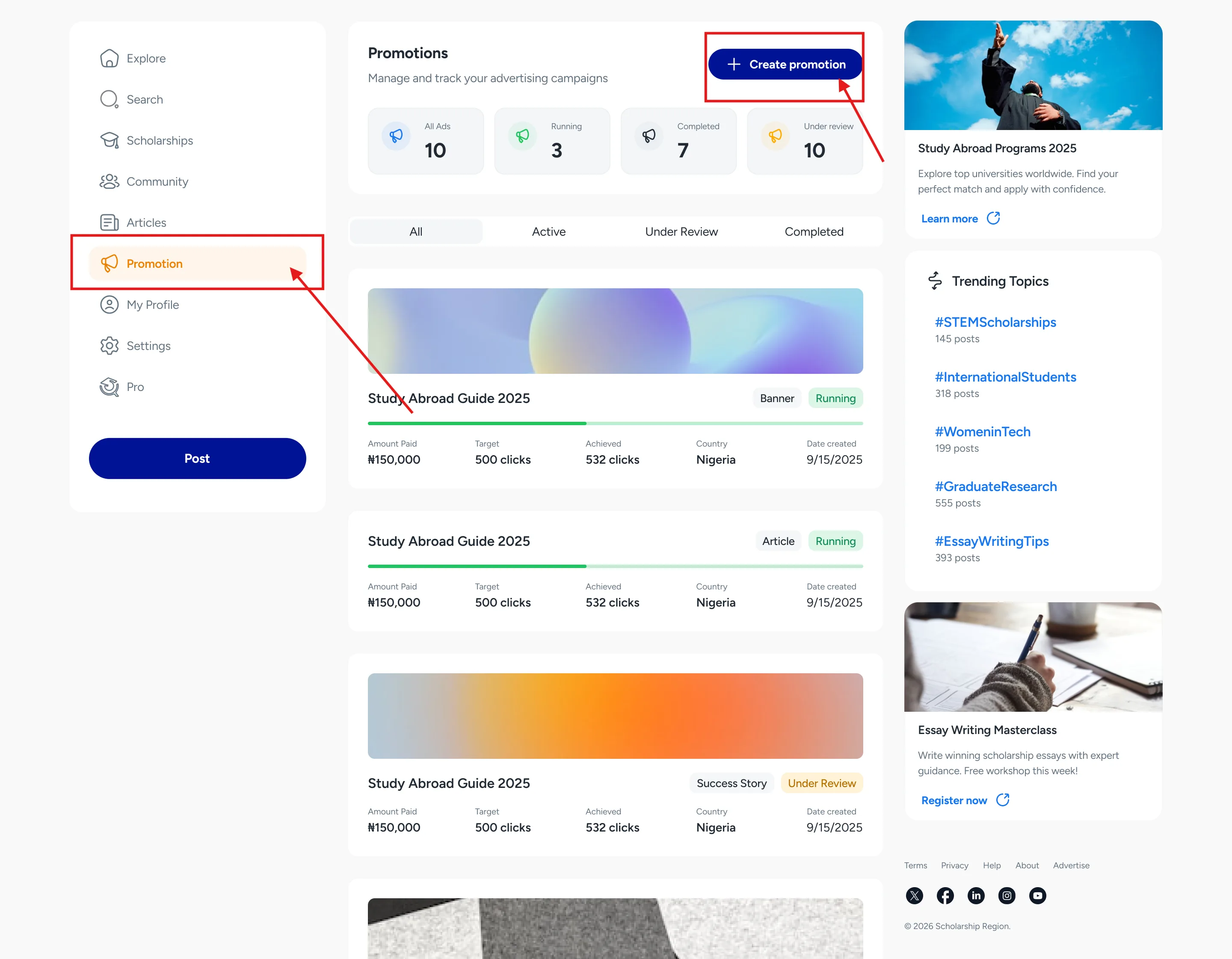
Step three: Set up your advert
On Scholarship Region, you can set up your ads in 4 different formats. These are:
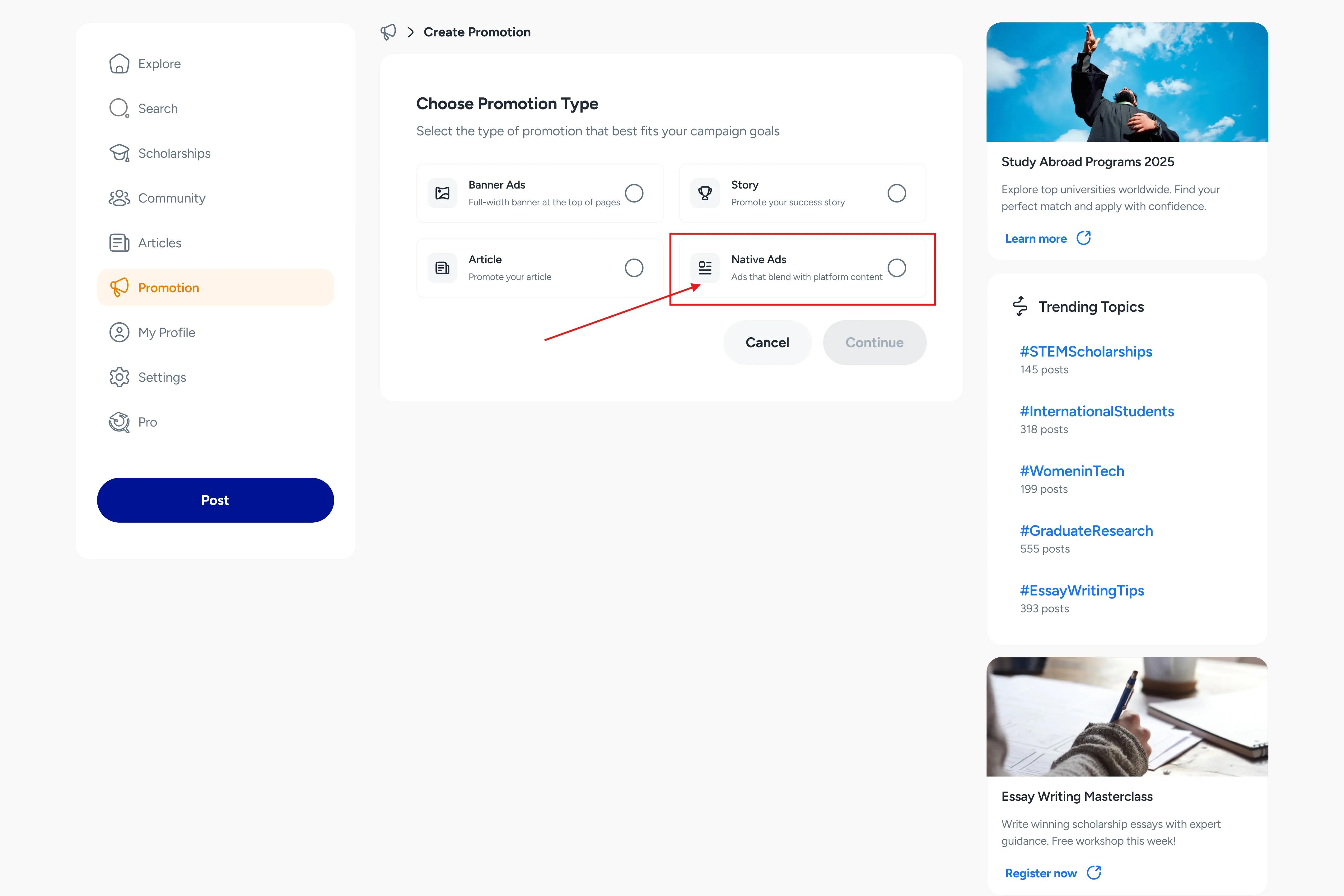
Native Ad: Show your ads to a large audience and prompt them to take action, such as visiting your website or app, buying your product, or contacting you.
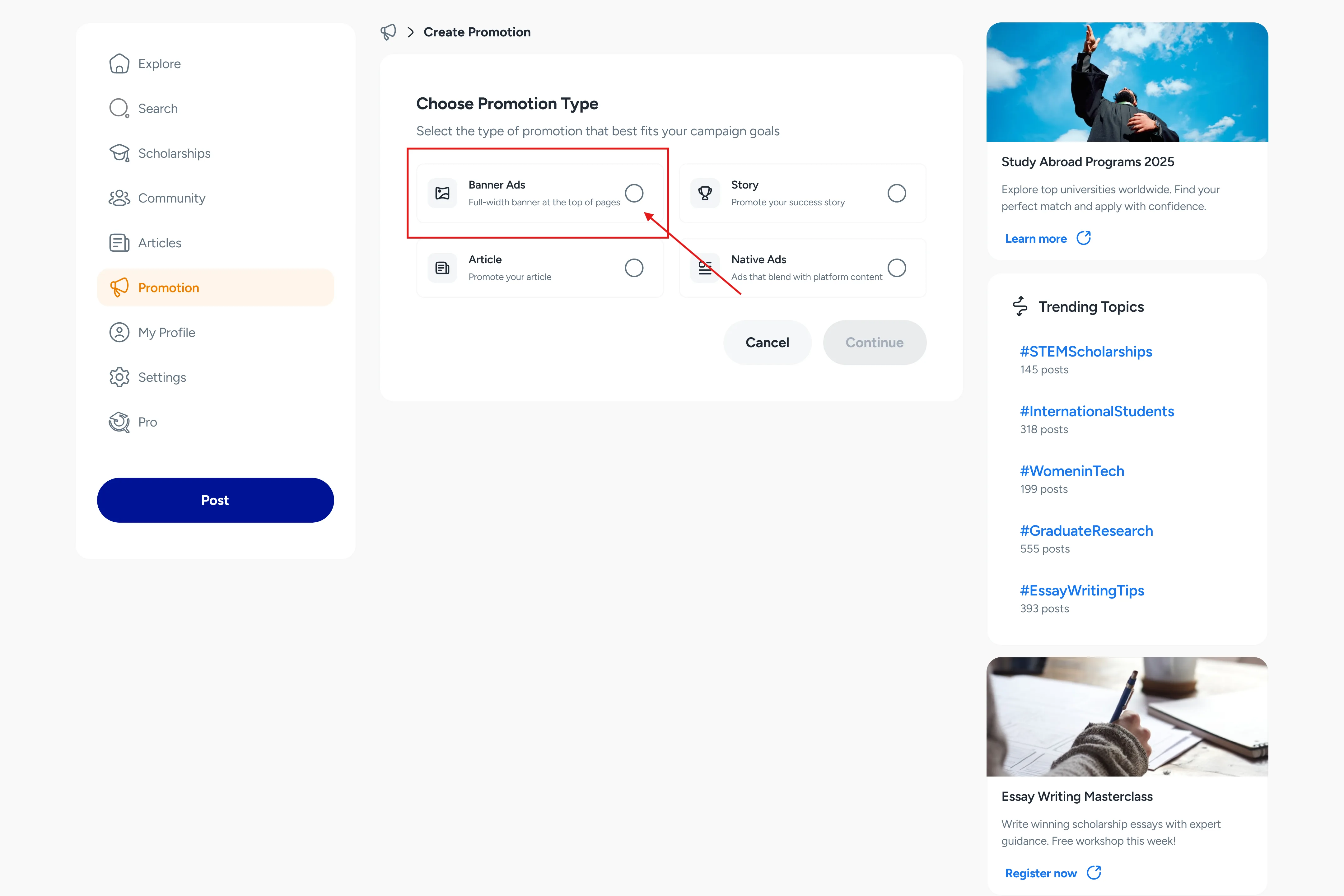
Banner Ad: Reach a large audience with banner ads.
Article Ad: Promote your article to reach a large audience.
Story Ad: Promote your story to reach a large audience.
To set up your ads, click on ‘Create Promotion’, select your preferred advert type, and start filling in the details.
For Native Ads
Fill in the ‘Ad Heading’, ‘Support text’, ‘CTA caption’, and ‘Target URL’. The target URL is the link your customers will visit once they click on your ad.
You will then upload at least one media creative for your advert. The media can be an image or a video.
Note: Accepted aspect ratios for media creative are 9:16 (vertical), 16:9 (horizontal), and 1:1 (square).
After uploading your banner, click ‘Save and Continue’.
For Banner Ads
Fill in the ‘Ad title’ and ‘Target URL’. The target URL is the link your customers will visit once they click on your ad.
You will then upload at least one image creative for your advert.
Note: Accepted aspect ratios for images are 1:1 (square image), 970px by 250px (billboard banner), 1:2 (or 300px by 600px banner), 728px by 90px (leaderboard), and 320px by 100px (mobile banner).
After uploading your banner, click ‘Save and Continue’.
For Story and Article Promotion
Select the story or article you would like to promote from your existing stories or articles. If you have not created one yet, you can create a new Story or Article before proceeding.
Once you have selected the Story or Article, review the content carefully to ensure it reflects the information you want to promote.
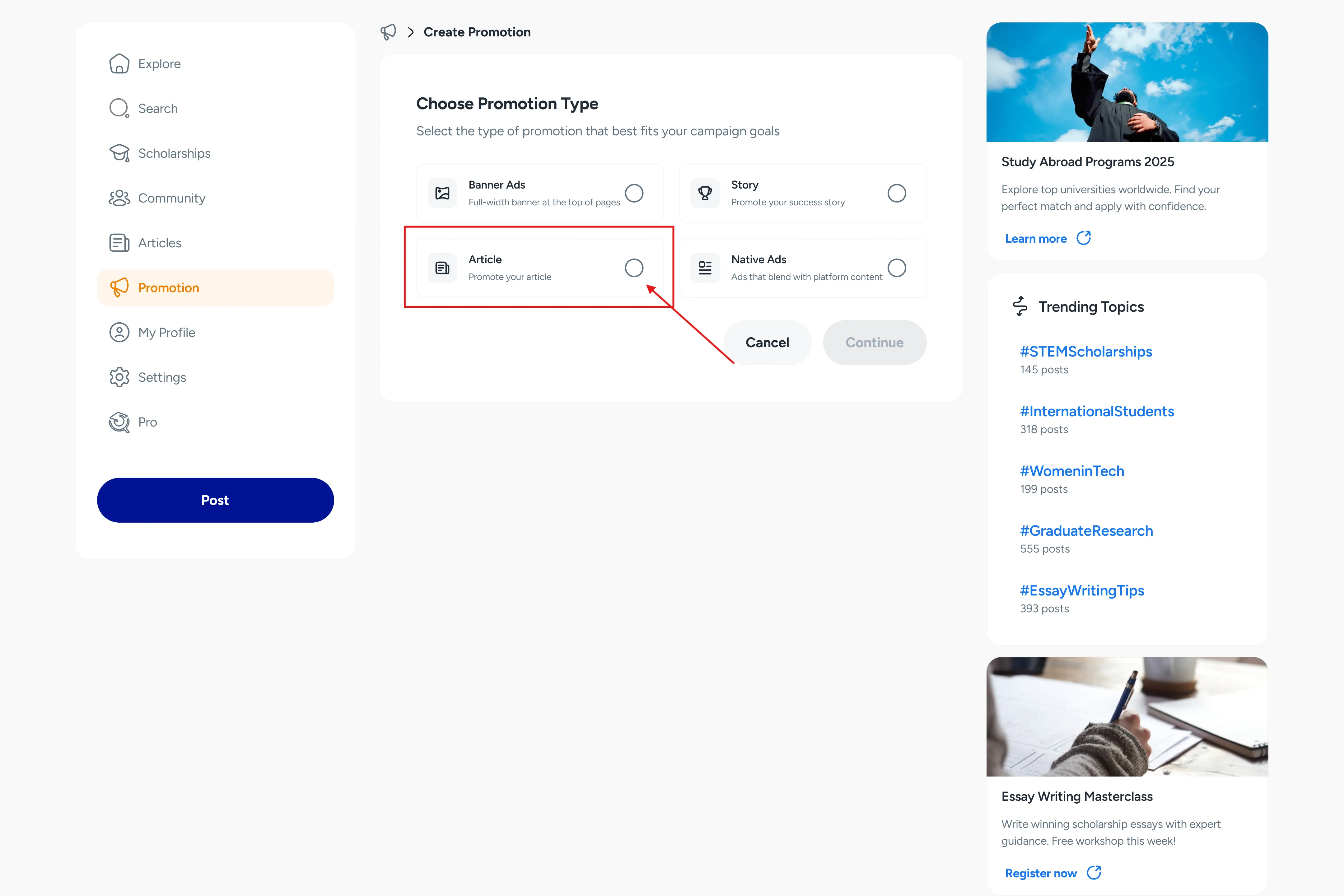
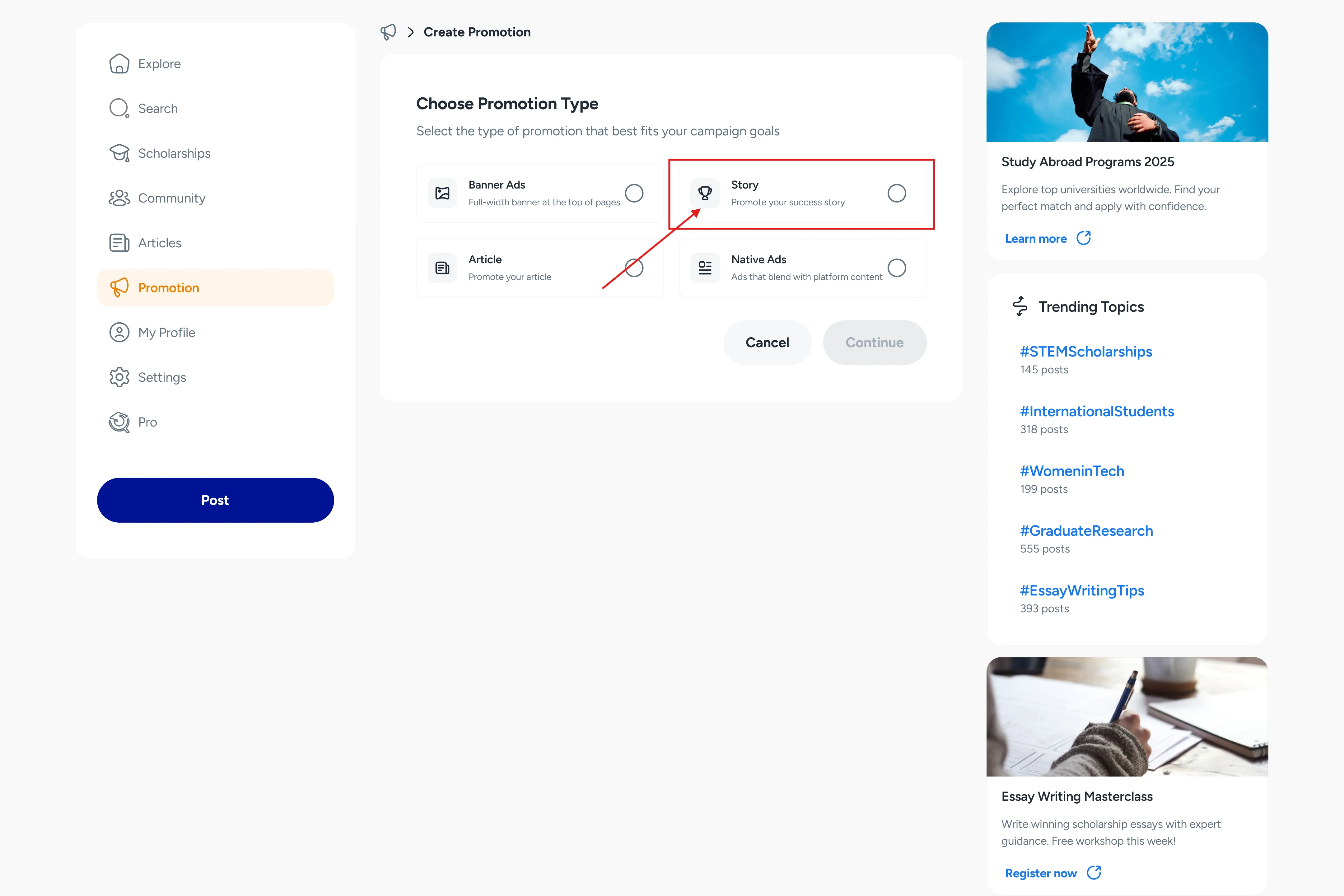
After confirming your selection, click ‘Save and Continue’.
Note that Story and Article promotions cannot be edited once submitted.
Step four: Set target audience and budget
Now that your ad is set up, you can set your target audience and budget.
To set your target audience, click on the ‘Audience country’ and select all the countries you want your advert to be shown to.
To set your advert budget, select your preferred payment currency (NGN or USD) and select how you wish to pay for the advert. You have the option to ‘pay per view’ or to ‘pay per click’.
After setting the payment option you prefer, specify the number of ‘Views’ or ‘Clicks’ you want on your advert (the option you select will affect the pricing of your advert; to learn more about pricing, click here [insert link]).
Once this is filled, you will see the ‘Estimated cost’ for your advert. Click ‘Save and Continue’.
You will then preview your promotion, complete payment, and submit it for review.
Step five: Review and pay
Your advert is now ready to go live. Review the details of your advert to see if everything is accurate and click ‘Pay and Submit’ to complete the advert submission.
A payment page will be presented to you where you can pay with ‘Transfer’or ‘Debit card’. Complete the payment to make your advert go live.
How to track the performance of your promotion
To track the status and performance of your promotion, return to the ‘Promotion’ section in the menu.
You will see a list of all the ads you have created. Click on the ad you wish to track to view its performance.
How to edit an active promotion
To edit a campaign, navigate to the Promotion page and click on the campaign you want to modify to open its details. You will see ‘Edit Promotion’ at the top-right corner. Click on ‘Edit Promotion’ to make changes.
Then click ‘Save changes’.
Note that Story promotions and Article promotions cannot be edited once submitted.
If you have questions or need clarification on how to promote a business on Scholarship Region, you can BOOK A DEMO here.
Did you find this article helpful?