

Welcome to the Help Center
Get quick answers to your questions about Scholarship Region
How to make a post
Sharing knowledge, experiences, and educational stories is a core part of the Scholarship Region community.
By posting articles and stories, you can contribute valuable insights, highlight your achievements, and help others navigate their scholarship journey. Posting on the platform also helps you build visibility and establish credibility.
Scholarship Region supports different post types, each designed for a specific purpose:
Story: Use this style to share an experience, achievement or your education success story.
Articles: Use this style to share long and detailed helpful content.
Questions: Use this style to ask a question about a scholarship.
Resources: Use this style to share any helpful resources in a community room [insert link].
Choosing the right post type helps your content reach the right audience and achieve its intended goal.
How to post an article or story
Creating an article or story on Scholarship Region is simple and can be done directly from the Explore feed.
Sign in to access the Explore feed. You can sign in here.
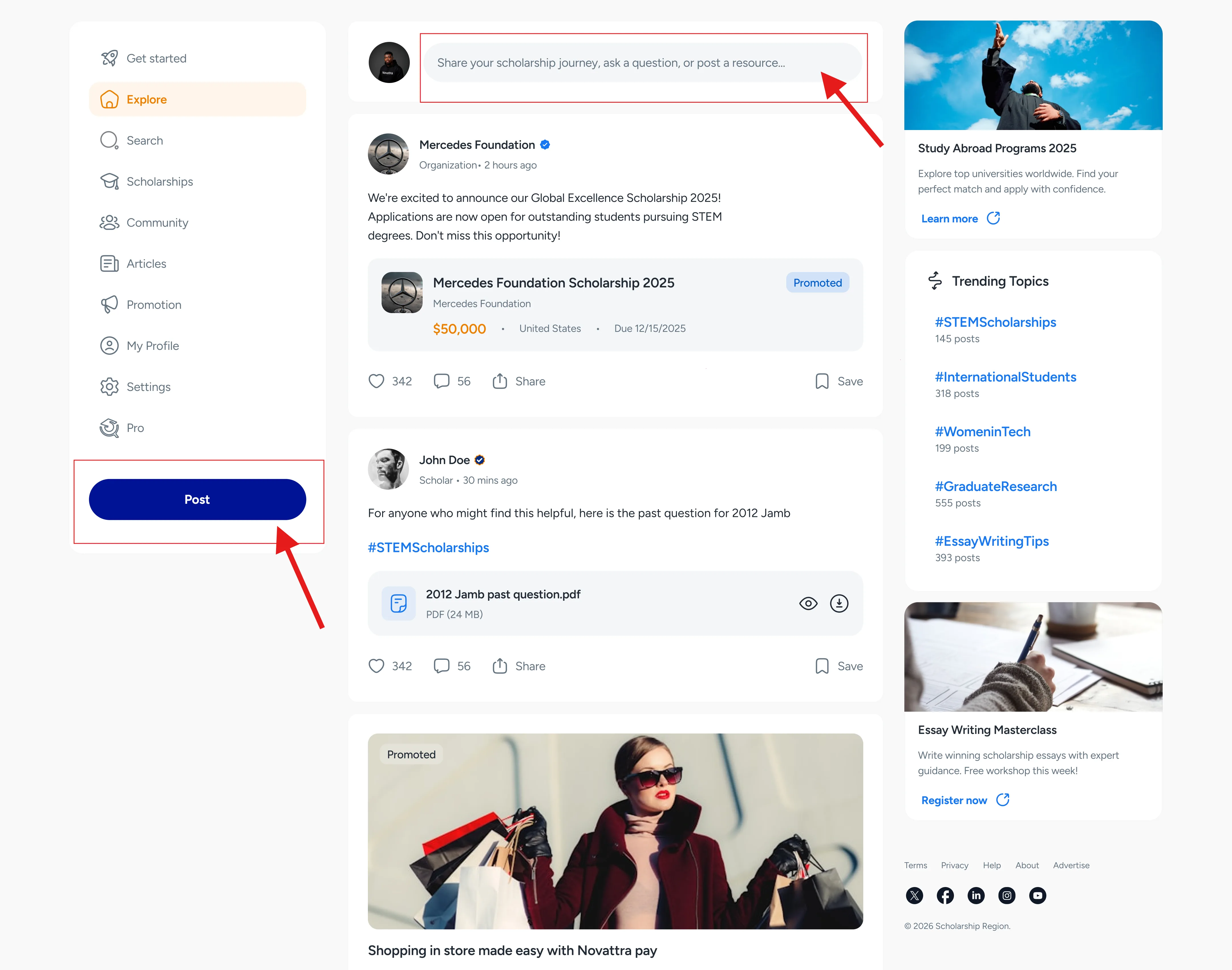
On the Explore page, click or tap the ‘Post’ button in the menu or click the status field at the topmost part of the page.
-8c3d59a2.webp)
-f77efd63.webp)
Select the type of post you want to create. That is: Article or Story.
Fill the fields with the details of your post.
Click or tap ‘Post’.
Once published, your content becomes visible to all users on the platform.
How to ask a question from the Explore page
Asking a question can be done from the Explore page in these simple steps:
Sign in to access the Explore feed. You can sign in here here.
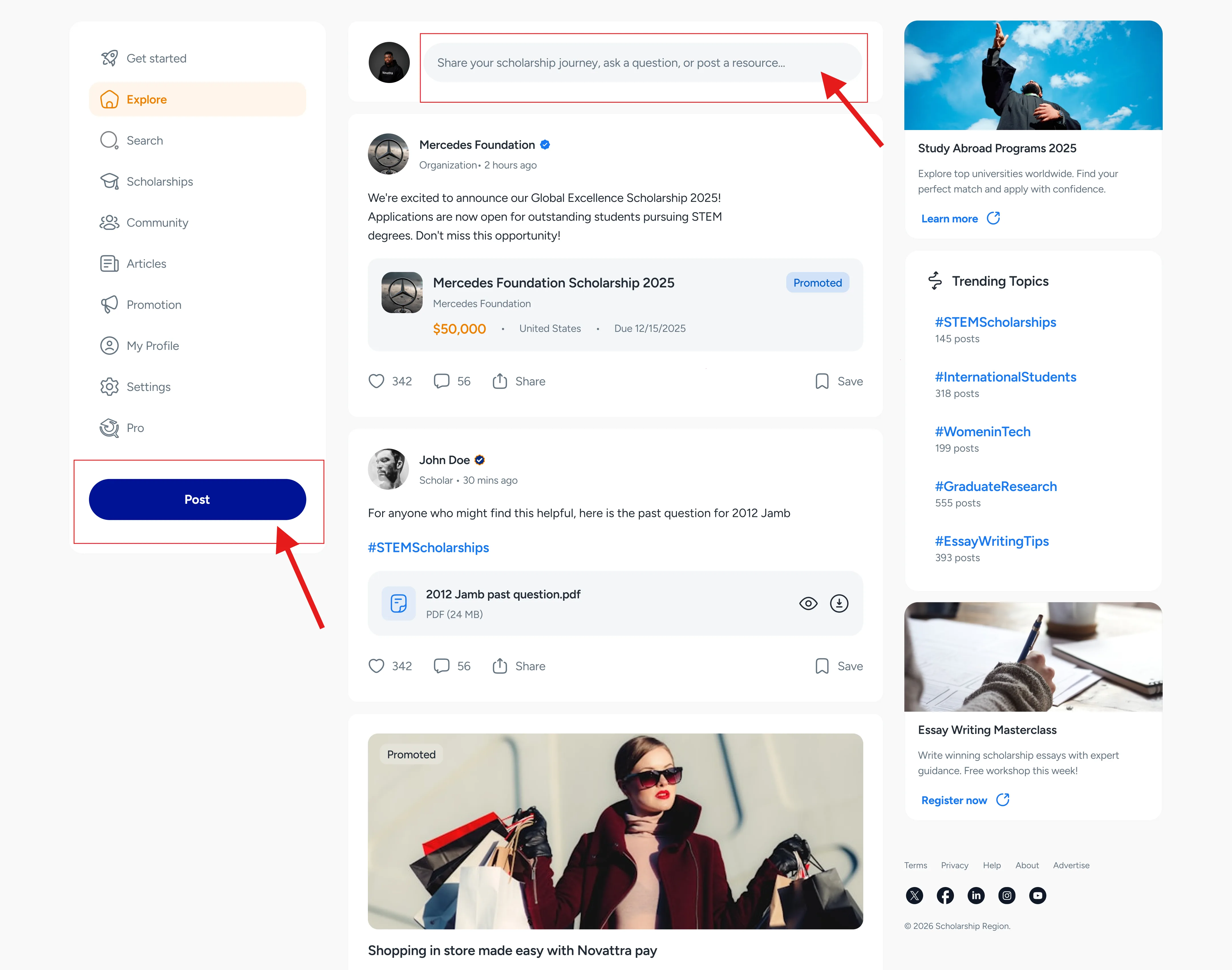
On the Explore page, click or tap the ‘Post’ button in the menu or click the status field at the topmost part of the page.
Select ‘Question’ as the type of post you want to create.
Under Room: Select the room (or scholarship) your resource is related to. Note: If your resource is not related to any scholarship, select ‘General’.
Under Description: Write a brief description of the resource you want to share and;
Click or tap ‘Post Resource’.
Once published, your resource becomes visible to all users on the platform.
-e8c9da71.webp)
How to share a resource from the Explore page
You can share resources such as past questions, study materials about a scholarship right from the explore page in these steps.
Sign in to access the Explore feed. You can sign in here.
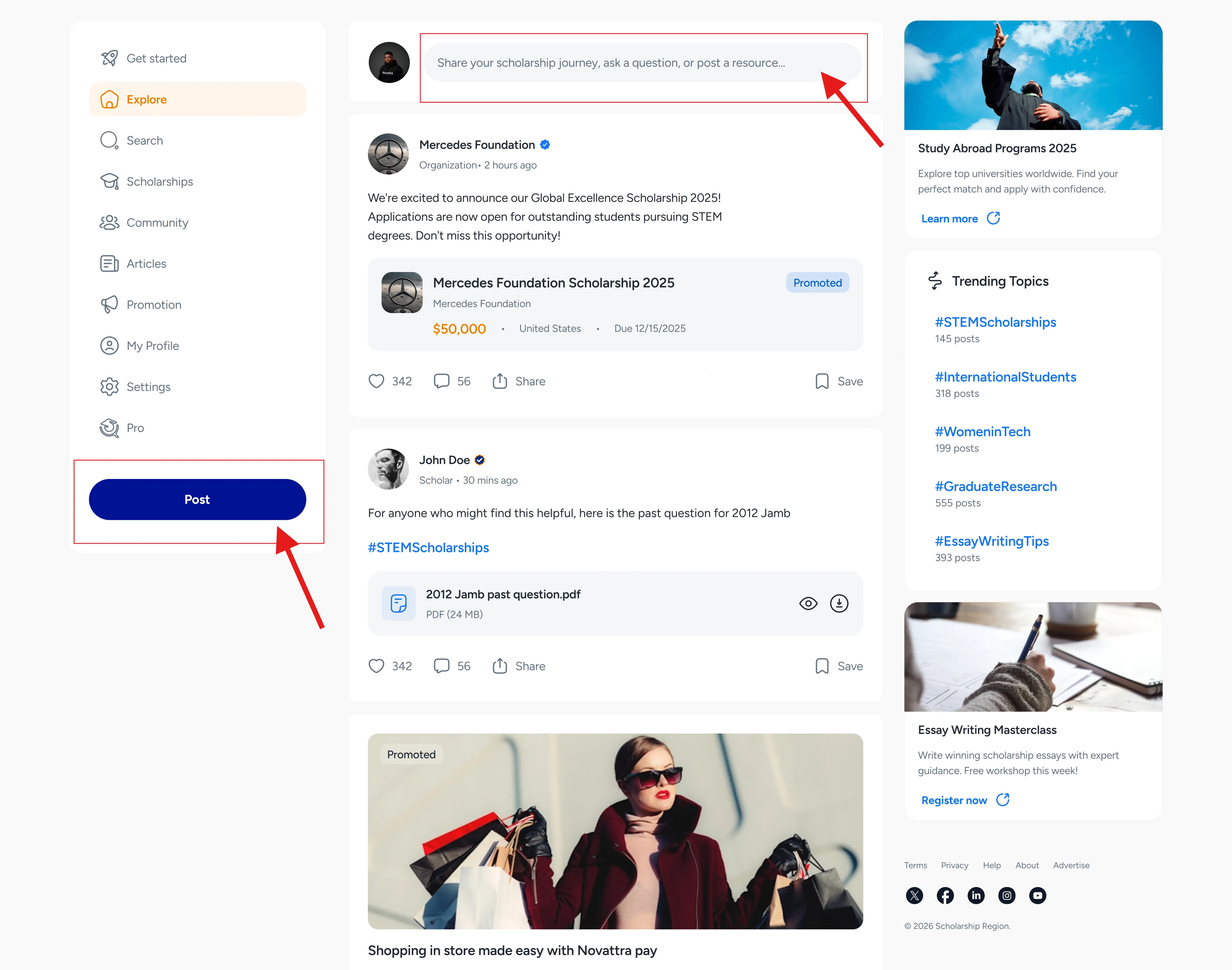
On the Explore page, click or tap the ‘Post’ button in the menu or click the status field at the topmost part of the page.
Select ‘Resources’ as the type of post you want to create.
-55b69bb0.webp)
Under Room: Select the room (or scholarship) your resource is related to. Note: If your resource is not related to any scholarship, select ‘General’.
Under Description: Write a brief description of the resource you want to share and;
Click or tap ‘Post Resource’.
Once published, your resource becomes visible to all users on the platform.
How to share your post
After publishing, you can share your post to increase its reach or boost it with promotion [insert link]. To share your post in the Scholarship Region community or externally, follow these steps:
Sign in to here
Navigate to ‘My Profile’ in the menu options.
Under ‘Post’, you will see a list of all the posts you have made.
Click on the post you want to share.
Click or tap the share icon and select the share option you prefer.
To share your post in a community room, select ‘Share to room’ and select the rooms you want to share it with. Note that you must be a member of the room to share in it.
How to promote your posts
If you want your content to reach a wider, targeted audience, you can promote any post you make on Scholarship Region.
Promoted posts appear more prominently across the platform and are shown to users who are most likely to find them relevant. Promotion is especially useful for educational articles, announcements, success stories or content you want to amplify.
You can learn more about promoting content here.
Did you find this article helpful?